Sunday, June 9, 2024

Class 7


This is your first page decoration..๐Ÿ‘


This is your second page decoration..๐Ÿ‘


And third page start this line ✨๐Ÿ‘‡๐Ÿ‘‡

How does network security work?

Network security combines multiple layers of defenses at the edge and in the network. Each network security layer implements policies and controls. Authorized users gain access to network resources, but malicious actors are blocked from carrying out exploits and threats.

How do I benefit from network security?

Digitization has transformed our world. How we live, work, play, and learn have all changed. Every organization that wants to deliver the services that customers and employees demand must protect its network. Network security also helps you protect proprietary information from attack. Ultimately it protects your reputation.

Types of network security

Firewalls

Firewalls

Firewalls put up a barrier between your trusted internal network and untrusted outside networks, such as the Internet. They use a set of defined rules to allow or block traffic. A firewall can be hardware, software, or both. Cisco offers unified threat management (UTM) devices and threat-focused.

Email security

Email security

Email gateways are the number one threat vector for a security breach. Attackers use personal information and social engineering tactics to build sophisticated phishing campaigns to deceive recipients and send them to sites serving up malware. An email security application blocks incoming attacks and controls outbound messages to prevent the loss of sensitive data.

Anti-virus and anti-malware software

Anti-virus and anti-malware software

"Malware," short for "malicious software," includes viruses, worms, Trojans, ransomware, and spyware. Sometimes malware will infect a network but lie dormant for days or even weeks. The best antimalware programs not only scan for malware upon entry, but also continuously track files afterward to find anomalies, remove malware, and fix damage.

Network segmentation

Network segmentation

Software-defined segmentation puts network traffic into different classifications and makes enforcing security policies easier. Ideally, the classifications are based on endpoint identity, not mere IP addresses. You can assign access rights based on role, location, and more so that the right level of access is given to the right people and suspicious devices are contained.

Access control

Access control

Not every user should have access to your network. To keep out potential attackers, you need to recognize each user and each device. Then you can enforce your security policies. You can block noncompliant endpoint devices or give them only limited access. This process is network access control (NAC).

Application security

Application security

Any software you use to run your business needs to be protected, whether your IT staff builds it or whether you buy it. Unfortunately, any application may contain holes, or vulnerabilities, that attackers can use to infiltrate your network. Application security encompasses the hardware, software, and processes you use to close those holes.

Class 8


This is your first page decoration..๐Ÿ‘


This is your second page decoration..๐Ÿ‘

And third page start this line ✨๐Ÿ‘‡๐Ÿ‘‡

What is cybersecurity all about?

A successful cybersecurity approach has multiple layers of protection spread across the computers, networks, programs, or data that one intends to keep safe. In an organization, the people, processes, and technology must all complement one another to create an effective defense from cyber attacks. A unified threat management system can automate integrations across select Cisco Security products and accelerate key security operations functions: detection, investigation, and remediation.

People

Users must understand and comply with basic data security principles like choosing strong passwords, being wary of attachments in email, and backing up data. Learn more about basic cybersecurity principles with these Top 10 Cyber Tips.

Processes

Organizations must have a framework for how they deal with both attempted and successful cyber attacks. One well-respected framework can guide you. It explains how you can identify attacks, protect systems, detect and respond to threats, and recover from successful attacks. Learn about the the NIST cybersecurity framework.

Technology

Technology is essential to giving organizations and individuals the computer security tools needed to protect themselves from cyber attacks. Three main entities must be protected: endpoint devices like computers, smart devices, and routers; networks; and the cloud. Common technology used to protect these entities include next-generation firewalls, DNS filtering, malware protection, antivirus software, and email security solutions.

Why is cybersecurity important?

In today’s connected world, everyone benefits from advanced cyberdefense programs. At an individual level, a cybersecurity attack can result in everything from identity theft, to extortion attempts, to the loss of important data like family photos. Everyone relies on critical infrastructure like power plants, hospitals, and financial service companies. Securing these and other organizations is essential to keeping our society functioning.

Everyone also benefits from the work of cyberthreat researchers, like the team of 250 threat researchers at Talos, who investigate new and emerging threats and cyber attack strategies. They reveal new vulnerabilities, educate the public on the importance of cybersecurity, and strengthen open source tools. Their work makes the Internet safer for everyone.

Types of cybersecurity threats

Phishing

Phishing is the practice of sending fraudulent emails that resemble emails from reputable sources. The aim is to steal sensitive data like credit card numbers and login information. It’s the most common type of cyber attack. You can help protect yourself through education or a technology solution that filters malicious emails.

Wednesday, May 22, 2024

CLASS :-6


                                    Explain HARDWARE & SOFTWARE 

Computer Hardware Basics

Hardware – any physical device or equipment used in or with a computer system (anything you can see and touch).

External hardware

  • External hardware devices (peripherals) – any hardware device that is located outside the computer.
  • Input device – a piece of hardware device which is used to enter information to a computer for processing.
  • Examples: keyboard, mouse, trackpad (or touchpad), touchscreen, joystick, microphone, light pen, webcam, speech input, etc.
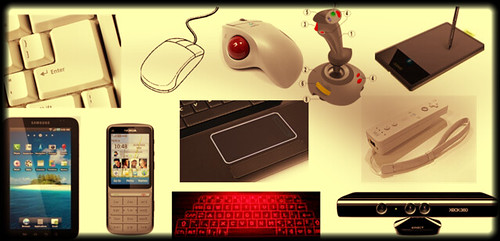
  • Output device – a piece of hardware device that receives information from a computer.
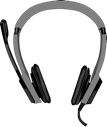
  • Examples: monitor, printer, scanner, speaker, display screen (tablet, smartphone …), projector, head phone, etc.

Internal hardware

Computer Software Basics

Computer software

  • Software – a set of instructions or programs that tells a computer what to do or how to perform a specific task (computer software runs on hardware).
  • Main types of software – systems software and application software.

Application software

  • Application software – a computer program that provides users with tools to accomplish a specific task.
  • Examples of application software: word processing, spreadsheets, presentation, database management, Internet browsers, email programs, media players, accounting, pronunciation, translation, desktop publishing, enterprise, etc.

System Software

System software – it is designed to run a computer’s hardware and application software, and make the computer system available for use. It serves as the interface between hardware, application software, and the user.

                                        Explain MOUSE & KEYBOARD


Mouse and keyboard fundamentals

The Mouse

A mouse is a peripheral device that you can use to provide input in your desktop computer or laptop. Even though laptops come with a built in touchpad, having a mouse can be helpful and easier to use if you’re going to spend long periods of time on the computer or for activities that require a bit more precision, such as graphic design.


Photo of a mouse Photo of a laptop mousepad

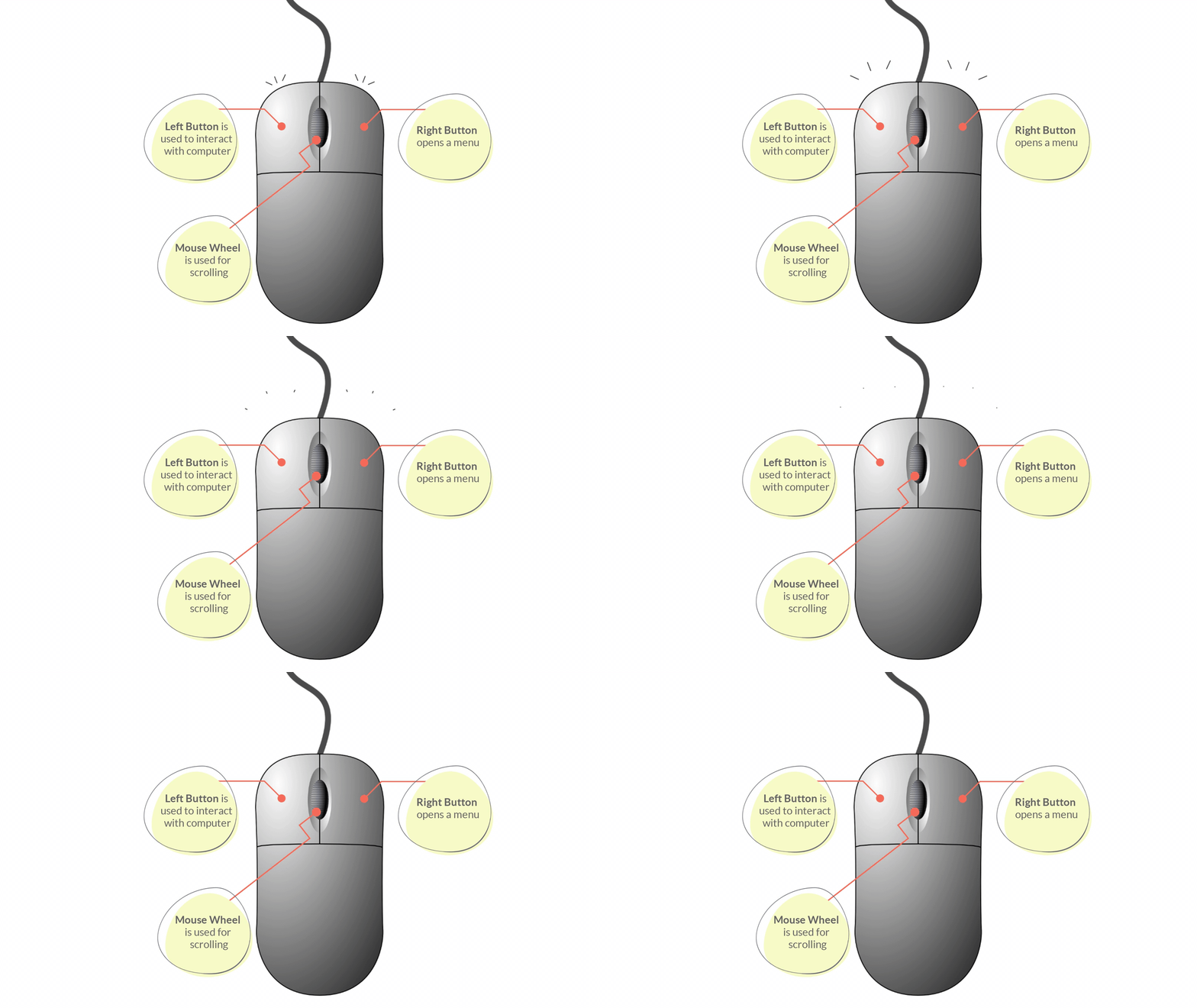
Graphic showing the left button, right button and wheel of a mouse

Parts of a Mouse: 

  • Left/Primary Button – is used most of the time, when interacting with the computer to make a selection.
  • Right/Secondary Button – is used less often. When you click the Right button, you can usually access a menu that pops up with several options.
  • Mouse Wheel - can be used for scrolling through documents or web pages. However, not all mice have this component.

Mouse operations: Point, Click, Double click, Drag

Placing your mouse on a mouse pad can make it easier to move. As you move your mouse around, you will notice an arrow on the screen moving in the same direction. This arrow is called the mouse pointer and it may appear differently from time to time.

  • Pointer pic - Used as a guide for pointing at objects on the computer’s screen.
  • Cursor pic - Appearance when editing text documents
  • Clickable or Link pic (hand) - Indicates that an item is clickable e.g. button or hyperlink

Mouse pointers can also be customised to take on different appearances.

The Keyboard

The infographic below shows a typical keyboard with its labelled parts e.g. Esc, Function keys, arrow keys, space bar, numeric keys
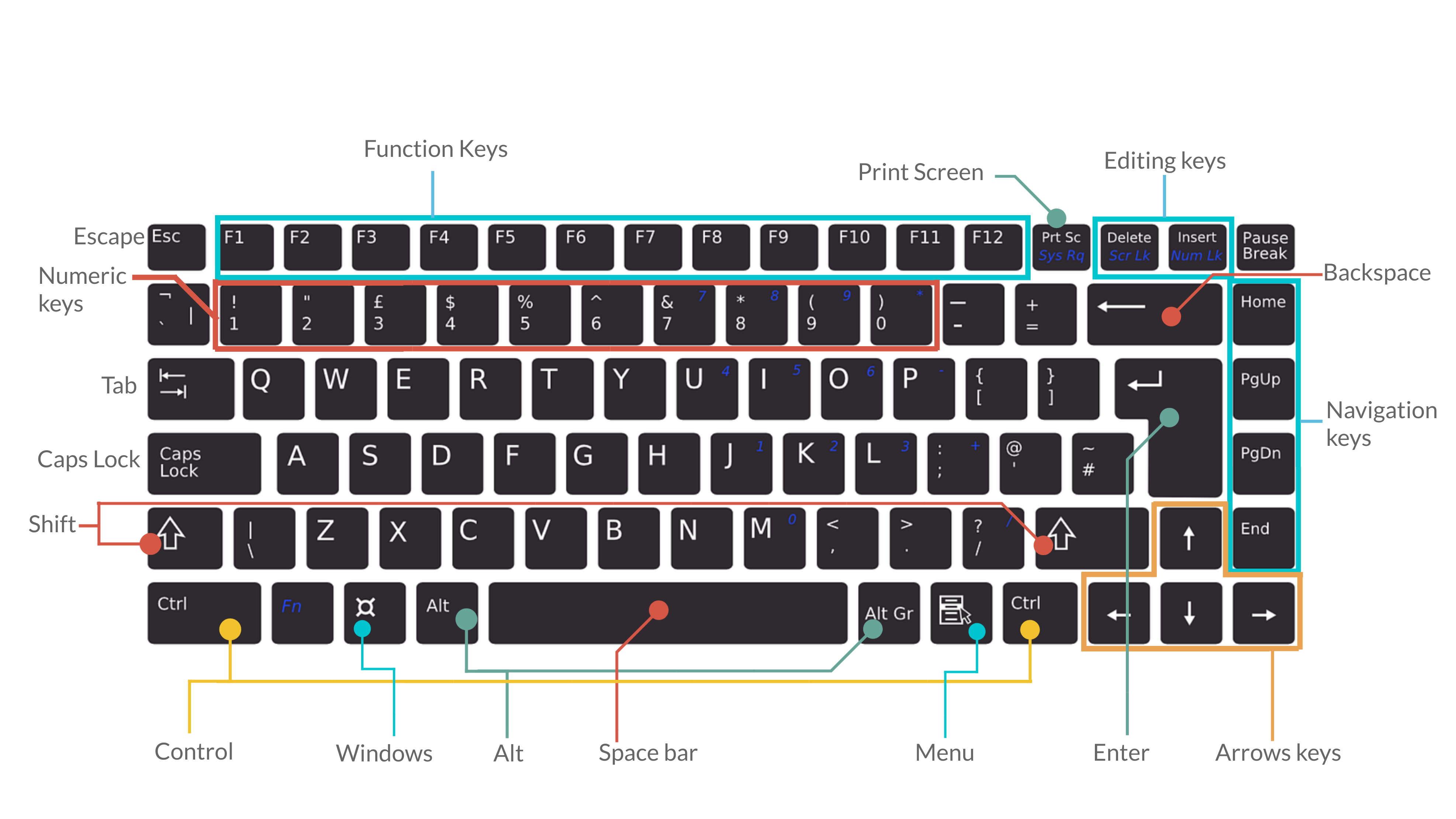
Image of a keyboard

  • Tab - For indenting words in a document or for moving forward through options in a dialog box.
  • CapsLock - Locks the keyboard in capitals mode, allowing you to type in capital letters.
  • Esc - For cancelling or quitting certain tasks in some programs.
  • Enter - Also known as the “Hard Return”, the Enter key is used for creating a new line in a document or for selecting/pressing a dialog box button.
  • Function keys - These have a variety of uses depending upon the program e.g. F1 offers help in many application programs.
  • Arrow keys - To move your cursor and move in specific directions: up, down, left or right.
  • Numeric keys - Most of these keys can be used for performing calculations. Some repeat themselves on the keyboard e.g. the number keys are found below the Function keys as well.
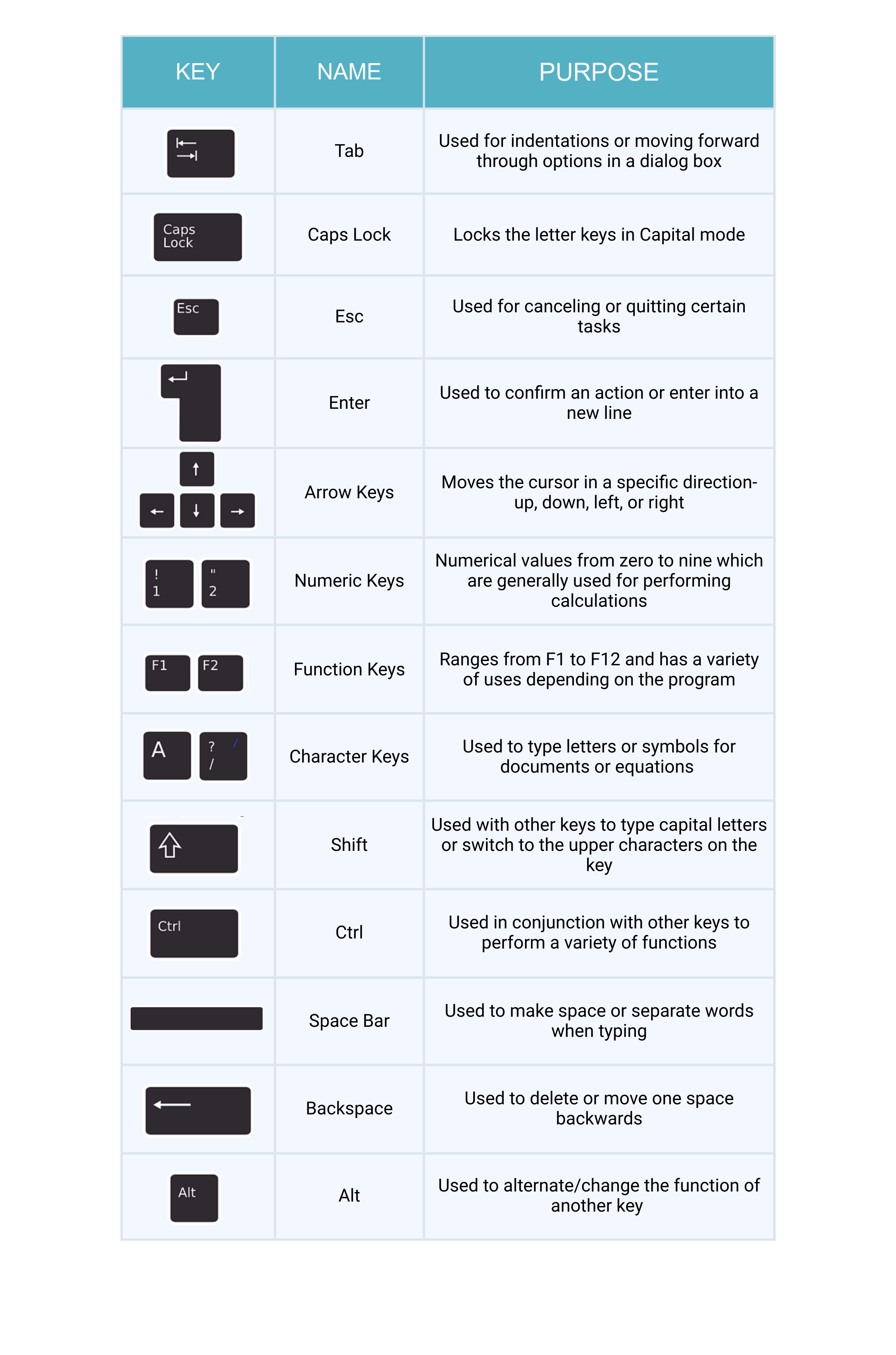
Infographic of a keyboard showing images of the keys with the name and purpose of each keyboard key

DEFINATION OF HTML :- 

HTML:- HTML (Hypertext Markup Language) is a text-based approach to describing how content contained within an HTML file is structured. This markup tells a web browser how to display text, images and other forms of multimedia on a webpage.

HTML is a formal recommendation by the World Wide Web Consortium (W3C) and is generally adhered to by all major web browsers, including both desktop and mobile web browsers. HTML5 is the latest version of the specification.

Basic elements of HTML

Using HTML, a text file is further marked up with additional text describing how the document should be displayed. To keep the markup separate from the actual content of the HTML file, there is a special, distinguishing HTML syntax that is used. These special components are known as HTML tags. The tags can contain name-value pairs known as attributes, and a piece of content that is enclosed within a tag is referred to as an HTML element.

HTML elements always have opening tags, content in the middle and closing tags. Attributes can provide additional information about the element and are included in the opening tag. Elements can be described in one of two ways:

  1. Block-level elements start on a new line in the document and take up their own space. Examples of these elements include headings and paragraph tags.
  2. Inline elements do not start on a new line in the document and only take up necessary space. These elements usually format the contents of block-level elements. Examples of inline elements include hyperlinks and text format tags.

Commonly used HTML tags

HTML tags dictate the overall structure of a page and how the elements within them will be displayed in the browser. Commonly used HTML tags include:

  • <h1> which describes a top-level heading.
  • <h2> which describes a second-level heading.
  • <p> which describes a paragraph.
  • <table> which describes tabular data.
  • <ol> which describes an ordered list of information.
  • <ul> which describes an unordered list of information.


thanks for visite to this Website guys✌๐Ÿ‘‡๐Ÿ‘‡๐Ÿ˜‰๐Ÿ‘ ....................

๐Ÿ‘‡๐Ÿ‘‡๐Ÿ™๐Ÿ™  please support to my social media accounts


Facebookfacebook
Instagramdaviputin786
YouTubeYOUTUBE
                                       ☝☝☝☝๐Ÿ‘๐Ÿ‘๐Ÿ˜‡

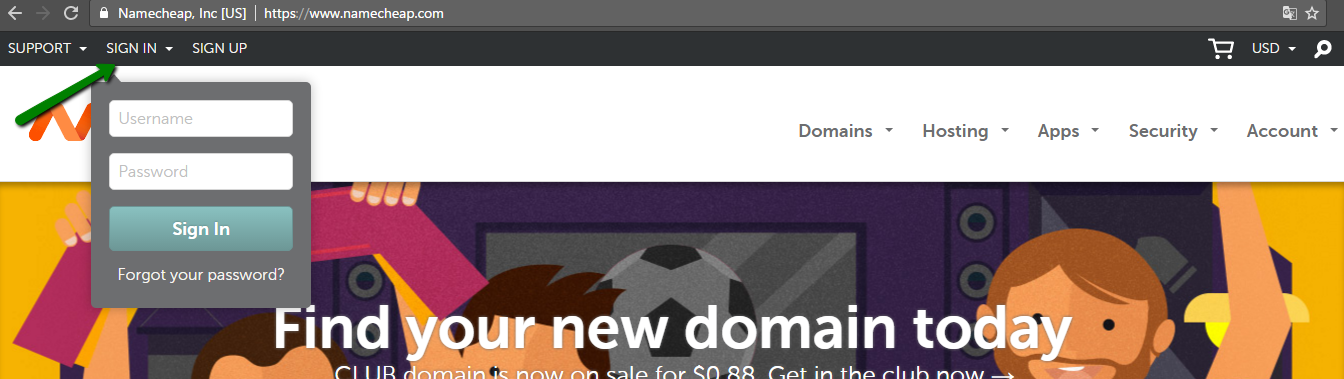
HOW TO CONNECT HOSTING

  เค•िเคธी เคกोเคฎेเคจ เค•ो เคธเคฐ्เคตเคฐ เคฏा เคนोเคธ्เคŸिंเค— เคธे เค•ैเคธे เค•เคจेเค•्เคŸ เค•เคฐें เคกोเคฎेเคจ เคจाเคฎ เคธेเคŸ เค•เคฐเคจा  เค†เคชเค•े เคตिเคšाเคฐ เคธे เค•เคนीं เคœ़्เคฏाเคฆा เค†เคธाเคจ เคนो เคธเค•เคคा เคนै। เคเค• เคฌाเคฐ เค†เคชเค•ा เคกोเคฎेเคจ เคจाเคฎ ...