Sunday, June 9, 2024

Class 8


This is your first page decoration..👍


This is your second page decoration..👍

And third page start this line ✨👇👇

What is cybersecurity all about?

A successful cybersecurity approach has multiple layers of protection spread across the computers, networks, programs, or data that one intends to keep safe. In an organization, the people, processes, and technology must all complement one another to create an effective defense from cyber attacks. A unified threat management system can automate integrations across select Cisco Security products and accelerate key security operations functions: detection, investigation, and remediation.

People

Users must understand and comply with basic data security principles like choosing strong passwords, being wary of attachments in email, and backing up data. Learn more about basic cybersecurity principles with these Top 10 Cyber Tips.

Processes

Organizations must have a framework for how they deal with both attempted and successful cyber attacks. One well-respected framework can guide you. It explains how you can identify attacks, protect systems, detect and respond to threats, and recover from successful attacks. Learn about the the NIST cybersecurity framework.

Technology

Technology is essential to giving organizations and individuals the computer security tools needed to protect themselves from cyber attacks. Three main entities must be protected: endpoint devices like computers, smart devices, and routers; networks; and the cloud. Common technology used to protect these entities include next-generation firewalls, DNS filtering, malware protection, antivirus software, and email security solutions.

Why is cybersecurity important?

In today’s connected world, everyone benefits from advanced cyberdefense programs. At an individual level, a cybersecurity attack can result in everything from identity theft, to extortion attempts, to the loss of important data like family photos. Everyone relies on critical infrastructure like power plants, hospitals, and financial service companies. Securing these and other organizations is essential to keeping our society functioning.

Everyone also benefits from the work of cyberthreat researchers, like the team of 250 threat researchers at Talos, who investigate new and emerging threats and cyber attack strategies. They reveal new vulnerabilities, educate the public on the importance of cybersecurity, and strengthen open source tools. Their work makes the Internet safer for everyone.

Types of cybersecurity threats

Phishing

Phishing is the practice of sending fraudulent emails that resemble emails from reputable sources. The aim is to steal sensitive data like credit card numbers and login information. It’s the most common type of cyber attack. You can help protect yourself through education or a technology solution that filters malicious emails.

Wednesday, May 22, 2024

CLASS :-6


                                    Explain HARDWARE & SOFTWARE 

Computer Hardware Basics

Hardware – any physical device or equipment used in or with a computer system (anything you can see and touch).

External hardware

  • External hardware devices (peripherals) – any hardware device that is located outside the computer.
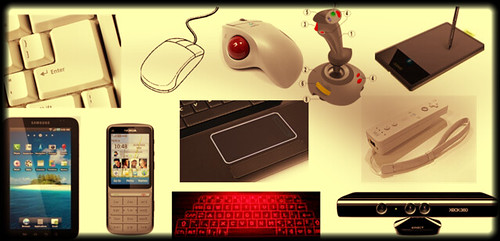
  • Input device – a piece of hardware device which is used to enter information to a computer for processing.
  • Examples: keyboard, mouse, trackpad (or touchpad), touchscreen, joystick, microphone, light pen, webcam, speech input, etc.
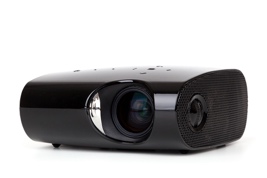
  • Output device – a piece of hardware device that receives information from a computer.
  • Examples: monitor, printer, scanner, speaker, display screen (tablet, smartphone …), projector, head phone, etc.

Internal hardware

Computer Software Basics

Computer software

  • Software – a set of instructions or programs that tells a computer what to do or how to perform a specific task (computer software runs on hardware).
  • Main types of software – systems software and application software.

Application software

  • Application software – a computer program that provides users with tools to accomplish a specific task.
  • Examples of application software: word processing, spreadsheets, presentation, database management, Internet browsers, email programs, media players, accounting, pronunciation, translation, desktop publishing, enterprise, etc.

System Software

System software – it is designed to run a computer’s hardware and application software, and make the computer system available for use. It serves as the interface between hardware, application software, and the user.

                                        Explain MOUSE & KEYBOARD


Mouse and keyboard fundamentals

The Mouse

A mouse is a peripheral device that you can use to provide input in your desktop computer or laptop. Even though laptops come with a built in touchpad, having a mouse can be helpful and easier to use if you’re going to spend long periods of time on the computer or for activities that require a bit more precision, such as graphic design.

Photo of a mouse Photo of a laptop mousepad

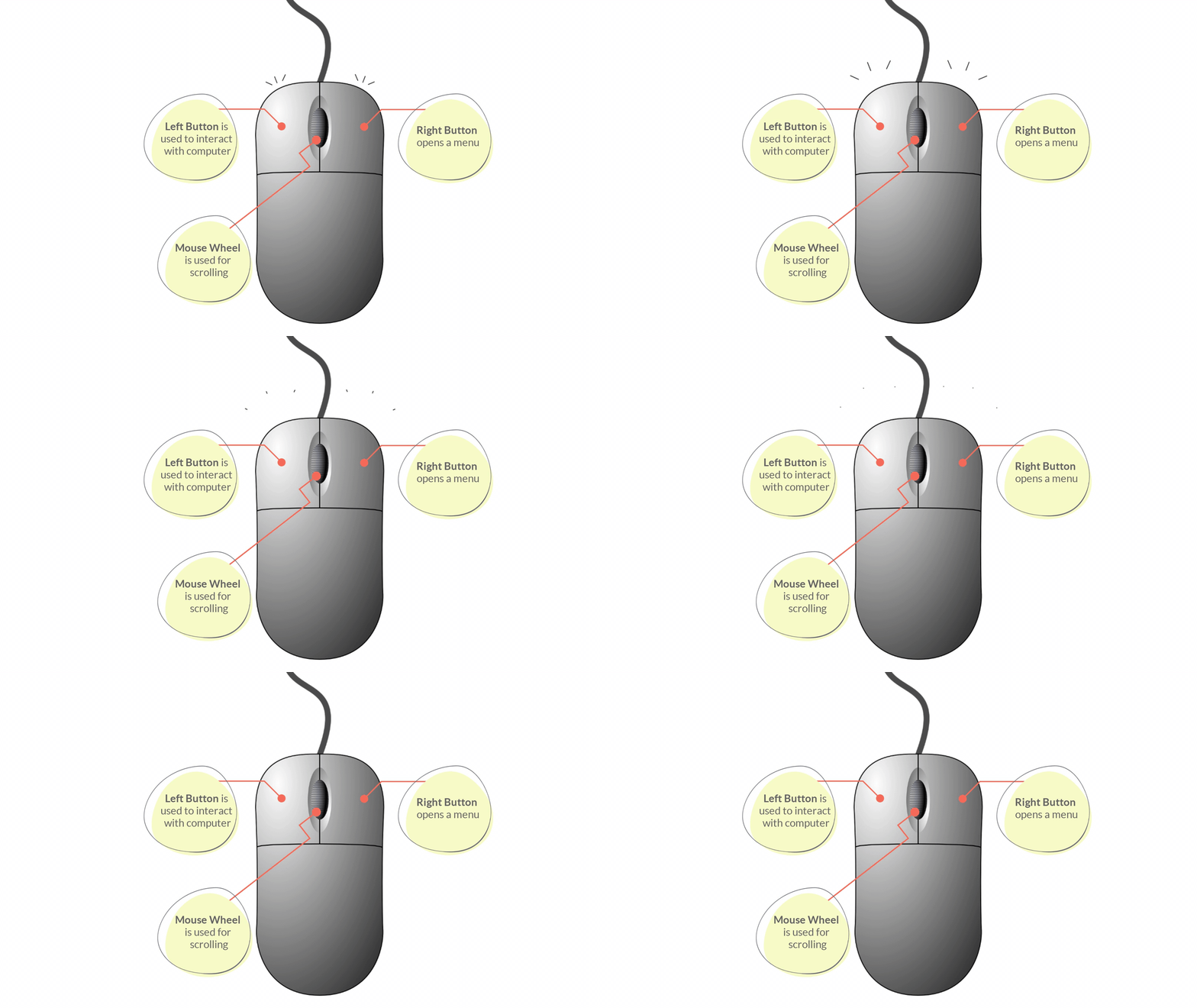
Graphic showing the left button, right button and wheel of a mouse

Parts of a Mouse: 

  • Left/Primary Button – is used most of the time, when interacting with the computer to make a selection.
  • Right/Secondary Button – is used less often. When you click the Right button, you can usually access a menu that pops up with several options.
  • Mouse Wheel - can be used for scrolling through documents or web pages. However, not all mice have this component.

Mouse operations: Point, Click, Double click, Drag

Placing your mouse on a mouse pad can make it easier to move. As you move your mouse around, you will notice an arrow on the screen moving in the same direction. This arrow is called the mouse pointer and it may appear differently from time to time.

  • Pointer pic - Used as a guide for pointing at objects on the computer’s screen.
  • Cursor pic - Appearance when editing text documents
  • Clickable or Link pic (hand) - Indicates that an item is clickable e.g. button or hyperlink

Mouse pointers can also be customised to take on different appearances.

The Keyboard

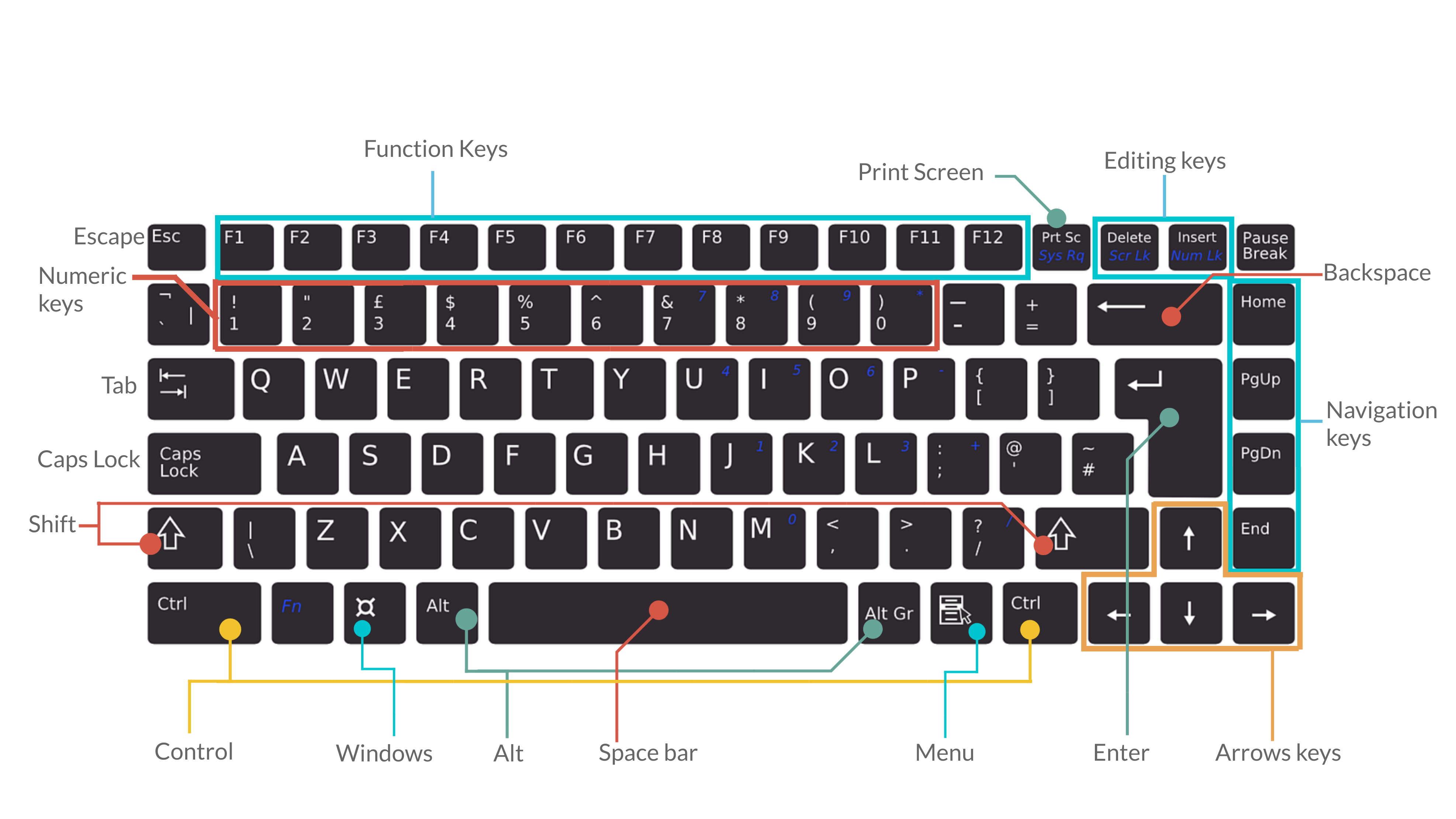
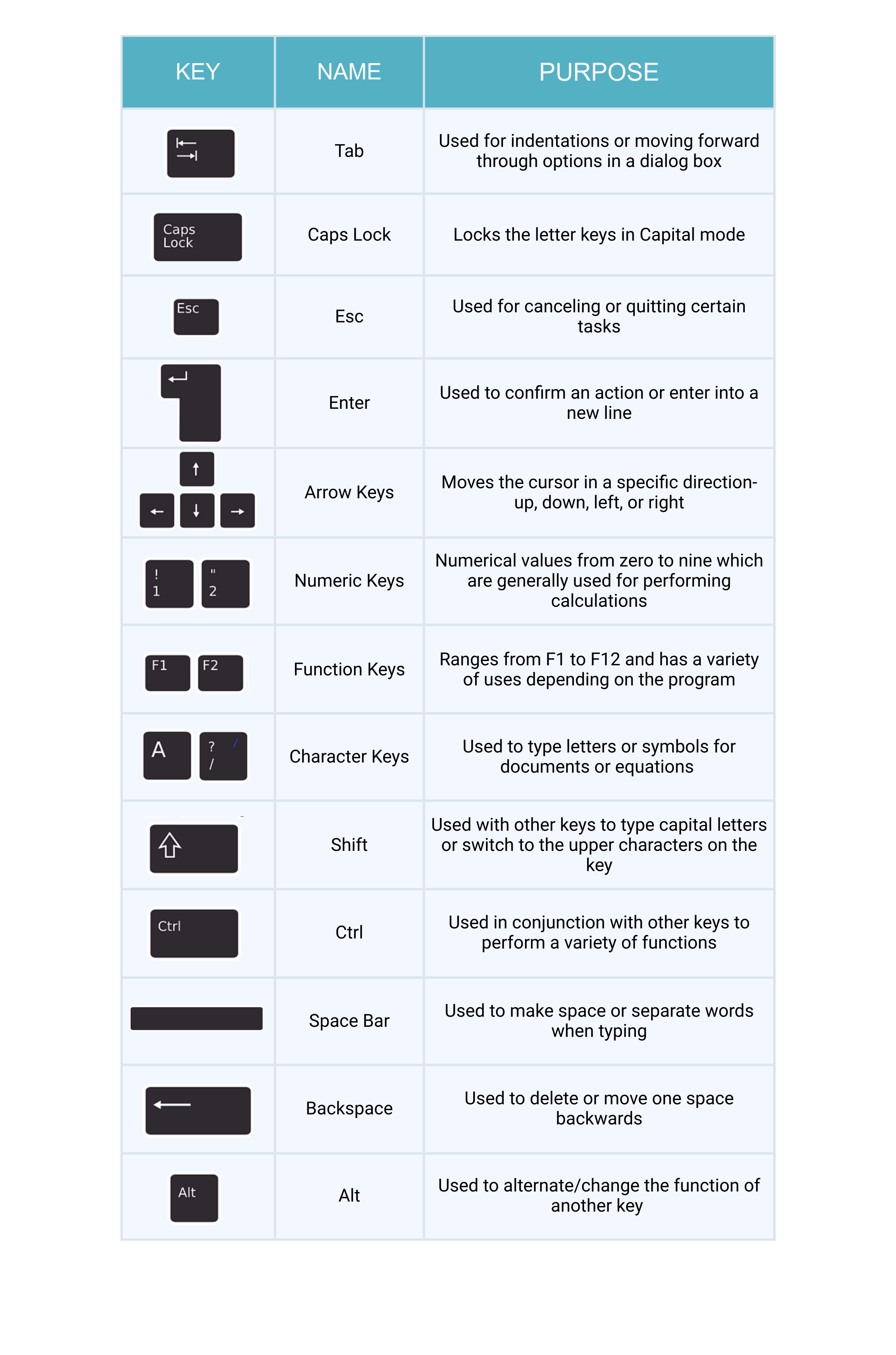
The infographic below shows a typical keyboard with its labelled parts e.g. Esc, Function keys, arrow keys, space bar, numeric keys

Image of a keyboard

  • Tab - For indenting words in a document or for moving forward through options in a dialog box.
  • CapsLock - Locks the keyboard in capitals mode, allowing you to type in capital letters.
  • Esc - For cancelling or quitting certain tasks in some programs.
  • Enter - Also known as the “Hard Return”, the Enter key is used for creating a new line in a document or for selecting/pressing a dialog box button.
  • Function keys - These have a variety of uses depending upon the program e.g. F1 offers help in many application programs.
  • Arrow keys - To move your cursor and move in specific directions: up, down, left or right.
  • Numeric keys - Most of these keys can be used for performing calculations. Some repeat themselves on the keyboard e.g. the number keys are found below the Function keys as well.

Infographic of a keyboard showing images of the keys with the name and purpose of each keyboard key

DEFINATION OF HTML :- 

HTML:- HTML (Hypertext Markup Language) is a text-based approach to describing how content contained within an HTML file is structured. This markup tells a web browser how to display text, images and other forms of multimedia on a webpage.

HTML is a formal recommendation by the World Wide Web Consortium (W3C) and is generally adhered to by all major web browsers, including both desktop and mobile web browsers. HTML5 is the latest version of the specification.

Basic elements of HTML

Using HTML, a text file is further marked up with additional text describing how the document should be displayed. To keep the markup separate from the actual content of the HTML file, there is a special, distinguishing HTML syntax that is used. These special components are known as HTML tags. The tags can contain name-value pairs known as attributes, and a piece of content that is enclosed within a tag is referred to as an HTML element.

HTML elements always have opening tags, content in the middle and closing tags. Attributes can provide additional information about the element and are included in the opening tag. Elements can be described in one of two ways:

  1. Block-level elements start on a new line in the document and take up their own space. Examples of these elements include headings and paragraph tags.
  2. Inline elements do not start on a new line in the document and only take up necessary space. These elements usually format the contents of block-level elements. Examples of inline elements include hyperlinks and text format tags.

Commonly used HTML tags

HTML tags dictate the overall structure of a page and how the elements within them will be displayed in the browser. Commonly used HTML tags include:

  • <h1> which describes a top-level heading.
  • <h2> which describes a second-level heading.
  • <p> which describes a paragraph.
  • <table> which describes tabular data.
  • <ol> which describes an ordered list of information.
  • <ul> which describes an unordered list of information.


thanks for visite to this Website guys✌👇👇😉👐 ....................

👇👇🙏🙏  please support to my social media accounts


Facebook- facebook
Instagram- daviputin786
YouTube- YOUTUBE
                                       ☝☝☝☝👍👍😇

Thursday, February 1, 2024

class 6

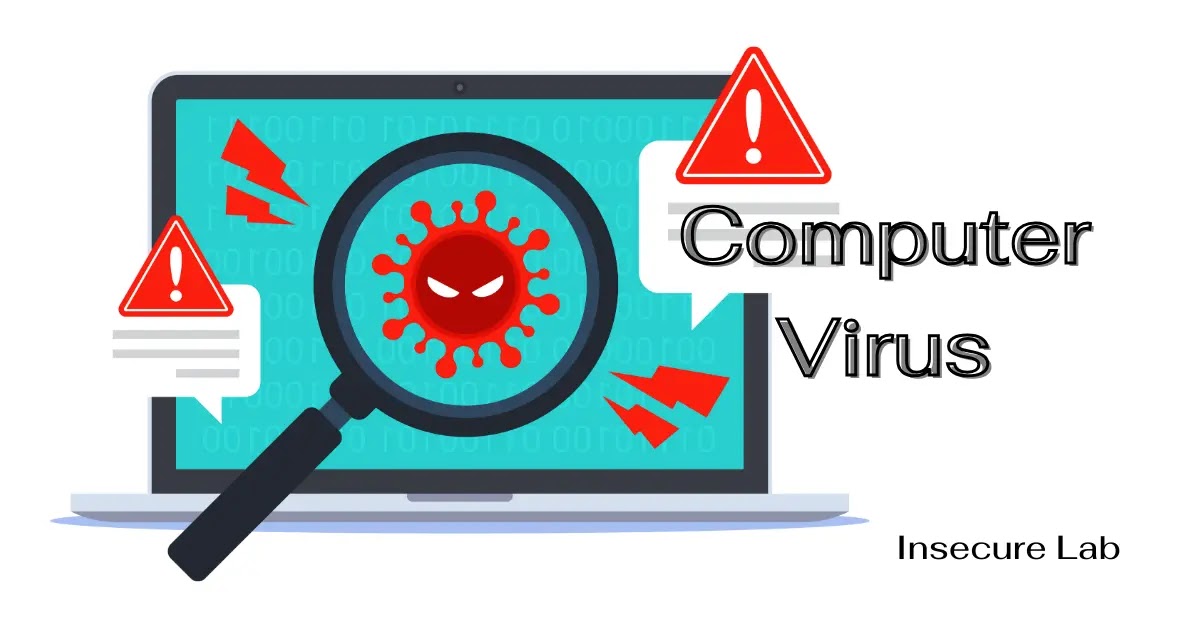
 What is computer virus?

A computer virus is a type of malware that attaches to another program (like a document), which can replicate and spread after a person first runs it on their system. For instance, you could receive an email with a malicious attachment, open the file unknowingly, and then the computer virus runs on your computer. Viruses are harmful and can destroy data, slow down system resources, and log keystrokes.

Windows, Mac, Android, and iOS

Many computer viruses target systems running Microsoft Windows. Macs, on the other hand, have enjoyed a reputation as virus-proof super machines, but in Apple’s own admission, Macs do get malware. There are more Windows users in the world than Mac users and cybercriminals simply choose to write viruses for the operating system (OS) with the largest amount of potential victims. 

Today, the “computer” in our pockets may be the one we use most often: our smartphones. Android and iOS are susceptible to various forms of malware, too. Fortunately, most cybersecurity companies like Malwarebytes offer protection for Windows, Mac, Android, and iOS today. 

Computer virus examples

Sometimes to understand what something is, we have to examine what it isn’t. Keeping that in mind, let’s play: Is It a Virus?

In the Is It a Virus game we’re going to take a look at examples of things people on the Internet commonly believe to be a virus and explain why it is or isn’t. What fun!

Is a Trojan a virus? Trojans can be viruses. A Trojan is a computer program pretending to be something it’s not for the purposes of sneaking onto your computer and delivering some sort of malware. 

History of computer viruses

Today’s malware authors owe a lot to the cybercriminals of yesteryear. All the tactics and techniques employed by cybercriminals creating modern malware were first seen in early viruses. Things like Trojans, ransomware, and polymorphic code. These all came from early computer viruses. To understand the threat landscape of today, we need to peer back through time and look at the viruses of yesteryear.

1984, Computer virus, defined
In 1984 computer scientist Fred Cohen handed in his graduate thesis paper, Computer Viruses – Theory and Experiments in which he coined the term “computer virus,” which is great because “complicated self-reproducing automata” is a real mouthful. In the same paper, Cohen also gave us our first definition of “computer virus” as “a program that can ‘infect’ other programs by modifying them to include a possibly evolved copy of itself.”

1999, “You’ve got mail (and also a virus)”
Think back to 1999. If someone you knew sent you an email that read “Here is the document you requested … don’t show anyone else ;-),” you opened the attachment.

This was how the Melissa virus spread and it played on the public’s naiveté about how viruses worked up to that point. Melissa was a macro virus. Viruses of this type hide within the macro language commonly used in Microsoft Office files. Opening up a viral Word doc, Excel spreadsheet, etc. triggers the virus.

How Does the Internet Work? 

An internet is a huge network of networks that helps us to connect millions of computers together. These computers that are connected to each other through the internet can interact with each other over the internet.

The Internet operates on a technique called packet switching. In packet switching, the data that is transferred among the different computers on the internet are transmitted in the form of packets. These packets contain information about the error control mechanisms, the address of the destination, and also the sequence in which the packets are to be transmitted.

What happens when we surf the Internet?

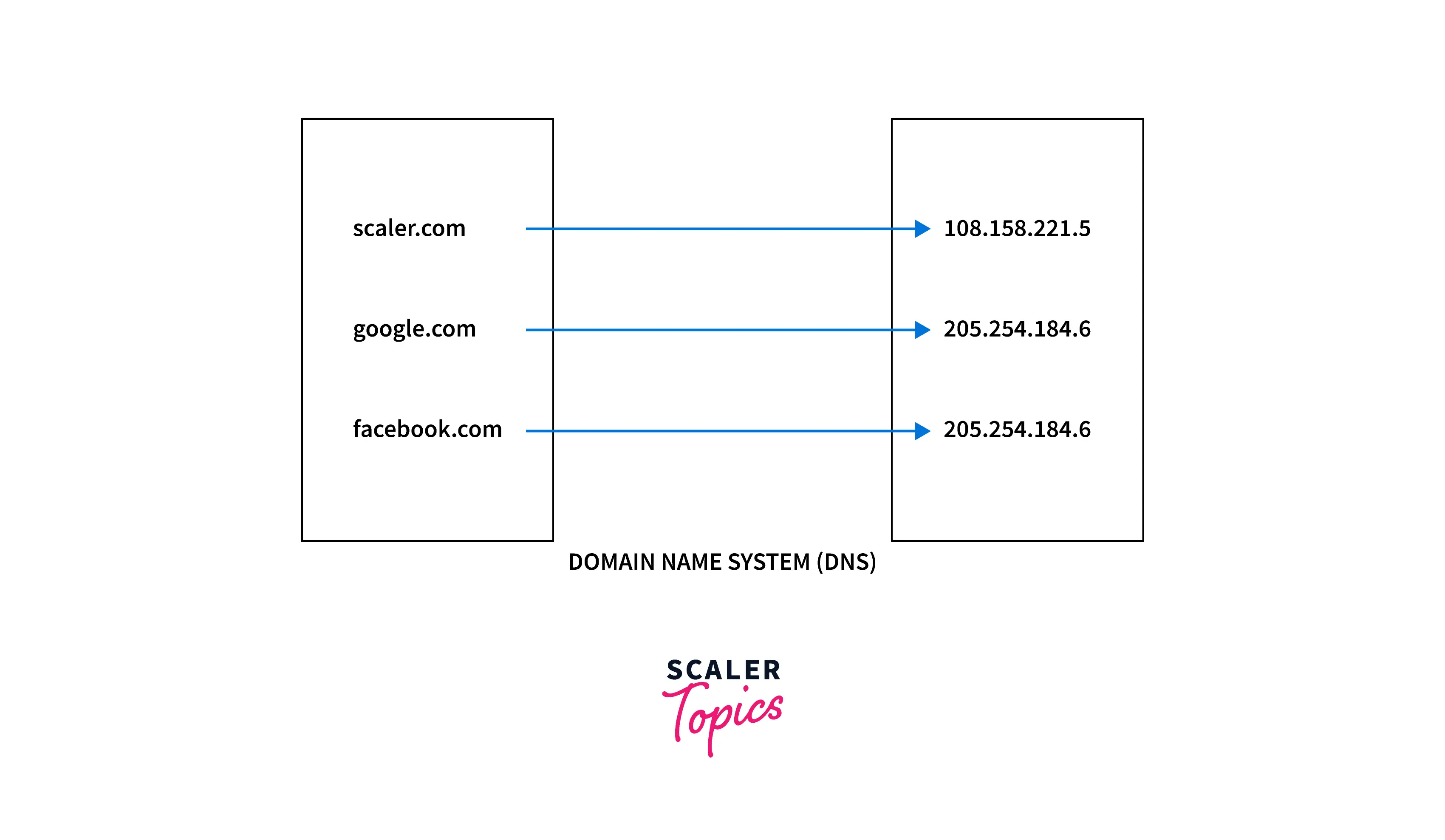
1. Extracting IP address of a URL (Uniform Resource Locator) In our browser, we enter the URL (Uniform Resource Locator) address of the website we want to visit. Once we enter the URL address of the website, the browser with the help of the DNS (Domain Name System) extracts the IP address corresponding to the URL address that is entered. The DNS (Domain Name System) contains the mapping of the URLs along with their corresponding IP addresses.

dns

2. Sending request to the server to access the webpage and receiving response Once we get the IP address of the website we want to access using DNS, the browser sends an HTTP (Hypertext Transfer Protocol) request to the server to extract the HTM (Hypertext Markup Language)L webpage corresponding to the IP address. This request is sent over PORT 80 using TCP (Transmission Control Protocol). Once the server receives this HTTP request, it responds back with an HTTP response. This HTTP response consists of the information related to the HTML page corresponding to the IP address of the website.

thanks for visite to this Website guys✌👇👇😉👐 ....................

👇👇🙏🙏  please support to my social media accounts


Facebook- facebook
Instagram- daviputin786
YouTube- youtube
                                       ☝☝☝☝👍👍😇


class 8

 What is the Internet?

The Internet is a global network of billions of computers and other electronic devices. With the Internet, it's possible to access almost any information, communicate with anyone else in the world, and do much more.

You can do all of this by connecting a computer to the Internet, which is also called going online. When someone says a computer is online, it's just another way of saying it's connected to the Internet.

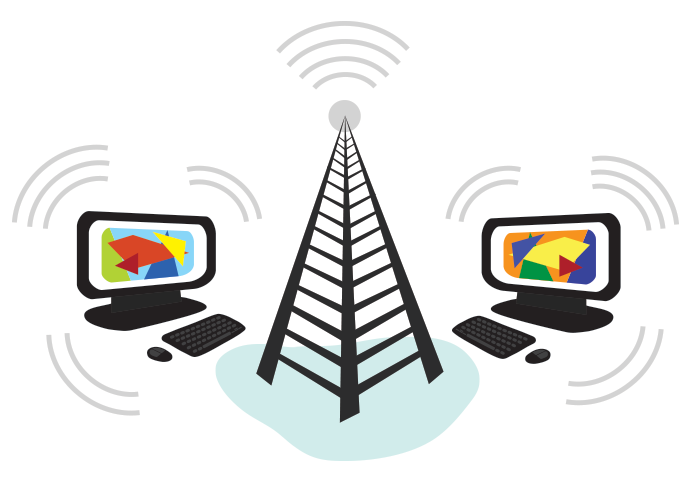
Computers wirelessly connecting to the Internet

What is the Web?

The World Wide Web—usually called the Web for short—is a collection of different websites you can access through the Internet. A website is made up of related text, images, and other resources. Websites can resemble other forms of media—like newspaper articles or television programs—or they can be interactive in a way that's unique to computers.

Social networking

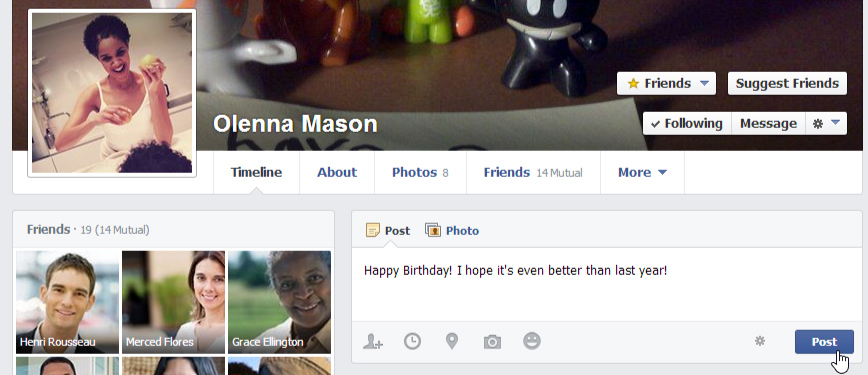
Social networking websites are another way to connect and share with your family and friends online. Rather than sharing with just a few people over email, social networks make it easier to connect and share with many people at the same time. Facebook is the world's largest social networking site, with more than 1 billion users worldwide.

Chat and instant messaging

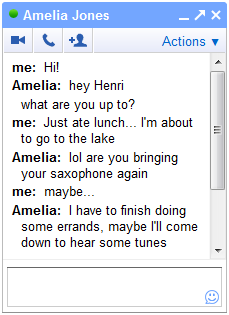
Chat and instant messaging (IM) are short messages sent and read in real time, allowing you to converse more quickly and easily than email. These are generally used when both (or all) people are online, so your message can be read immediately. By comparison, emails won't be seen until recipients check their inboxes.

Screenshot of chat

Examples of instant messaging applications include Yahoo Messenger and Google Hangouts. Some sites, like Gmail and Facebook, even allow you to chat within your web browser.

Online media

There are many sites that allow you to watch videos and listen to music. For example, you can watch millions of videos on YouTube or listen to Internet radio on Pandora. Other services, like Netflix and Hulu, allow you to watch movies and TV shows. And if have a set-top streaming box, you can even watch them directly on your television instead of a computer screen.

Basics of Computer Networking


Computer Networking is the practice of connecting computers together to enable communication and data exchange between them. In general, Computer Network is a collection of two or more computers. It helps users to communicate more easily. In this article, we are going to discuss the basics which everyone must know before going deep into Computer Networking.

Basic Terminologies of Computer Networks

  • Network: A network is a collection of computers and devices that are connected together to enable communication and data exchange.
  • Nodes: Nodes are devices that are connected to a network. These can include computers, Servers, Printers, Routers, Switches, and other devices.
  • Protocol: A protocol is a set of rules and standards that govern how data is transmitted over a network. Examples of protocols include TCP/IP, HTTP, and FTP.
  • Topology: Network topology refers to the physical and logical arrangement of nodes on a network. The common network topologies include bus, star, ring, mesh, and tree.
  • Service Provider Networks: These types of Networks give permission to take Network Capacity and Functionality on lease from the Provider. Service Provider Networks include Wireless Communications, Data Carriers, etc.
  • IP Address: An IP address is a unique numerical identifier that is assigned to every device on a network. IP addresses are used to identify devices and enable communication between them.
  • DNS: The Domain Name System (DNS) is a protocol that is used to translate human-readable domain names (such as www.google.com) into IP addresses that computers can understand.
  • Firewall: A firewall is a security device that is used to monitor and control incoming and outgoing network traffic. Firewalls are used to protect networks from unauthorized access and other security threats.

What is Visual Basic?

Visual Basic is a third-generation event-driven programming language first released by Microsoft in 1991. It evolved from the earlier DOS version called BASIC. BASIC means Beginners' All-purpose Symbolic Instruction Code. Since then Microsoft has released many versions of Visual Basic, from Visual Basic 1.0 to the final version Visual Basic 6.0. Visual Basic is a user-friendly programming language designed for beginners, and it enables anyone to develop GUI window applications easily.


The Visual Basic 6 Integrated Development Environment

Before you can write programs in VB 6, you need to install Visual Basic 6 compiler on your computer. You can purchase a copy of Microsoft Visual Basic 6.0 Learning Edition or Microsoft Visual Basic Professional Edition from Amazon.com, both are vb6 compilers. Besides, you can also buy it from eBay at Microsoft Visual Basic 6.0 6 Professional PRO MSDN Library Manual Service Pack. If you have already installed Microsoft Office in your PC or laptop, you can also use the built-in Visual Basic Application in Excel to start creating Visual Basic programs without having to spend extra cash to buy the VB6 compiler.
thanks for visite to this Website guys✌👇👇😉👐 ....................

👇👇🙏🙏  please support to my social media accounts


Facebook- facebook
Instagram- daviputin786
YouTube- youtube
                                       ☝☝☝☝👍👍😇

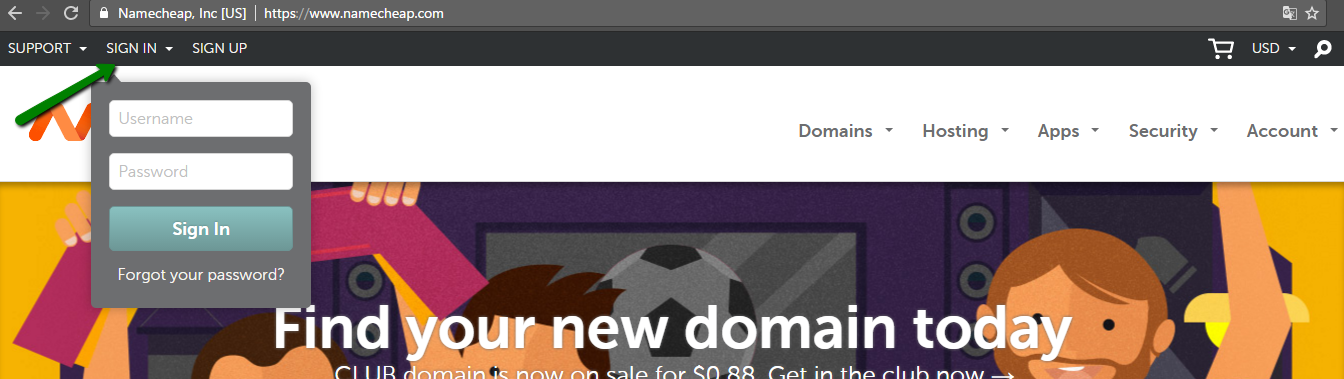
HOW TO CONNECT HOSTING

  किसी डोमेन को सर्वर या होस्टिंग से कैसे कनेक्ट करें डोमेन नाम सेट करना  आपके विचार से कहीं ज़्यादा आसान हो सकता है। एक बार आपका डोमेन नाम ...